If you are starting a Twitch channel, managing your live chat can quickly become a challenge. You may need to answer the same questions repeatedly, share your social media links, remove spam, and keep viewers informed while focusing on your gameplay.
A Twitch chat bot can automate many of these tasks. The right tool can make your streams easier to manage without requiring you to build a complicated setup.
In this guide, we compare Nightbot, StreamElements, and Moobot, explain their main features, and show you how to choose and set up a chat bot for your channel.
What Is a Twitch Chat Bot?
A Twitch chat bot is a tool that automates tasks in your channel’s live chat. Depending on the service, it can respond to commands, post scheduled messages, filter unwanted content, and help moderators manage conversations.
For example, viewers might type !socials to find your social media links or !uptime to check how long you have been streaming.
Chat bots are especially useful for small channels because they reduce repetitive work. However, they do not replace human moderators entirely. You should still review your moderation settings and monitor your community.
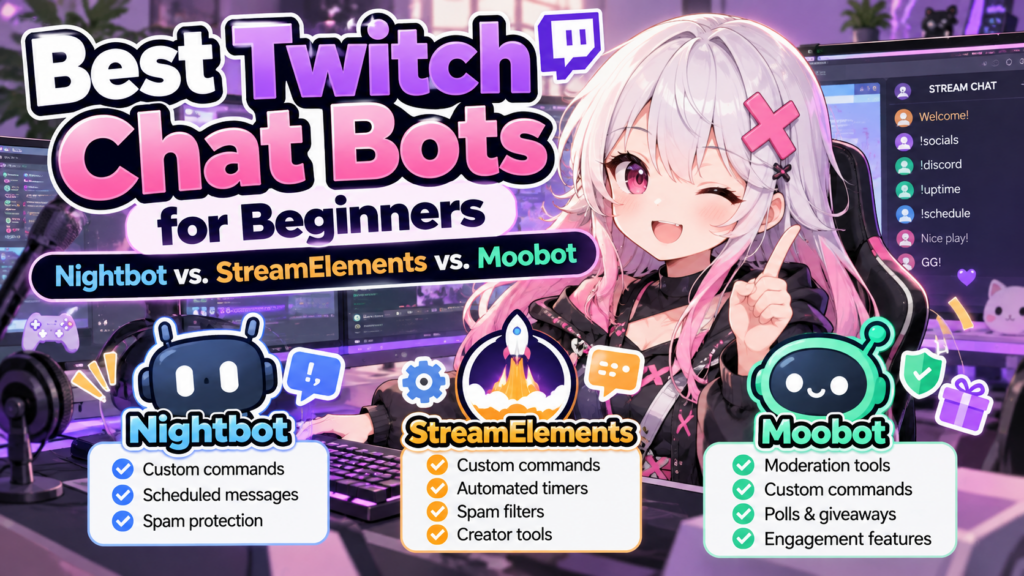
Best Twitch Chat Bots Compared
The three tools below offer different approaches to chat automation and moderation.
| Feature | Nightbot | StreamElements | Moobot |
|---|---|---|---|
| Custom commands | Yes | Yes | Yes |
| Automated messages | Yes | Yes | Yes |
| Spam moderation | Yes | Yes | Yes |
| Additional engagement features | Core chat tools | Broader creator toolkit | Polls, giveaways, and more |
| Best for | Simple chat automation | Flexible chat and creator tools | Twitch-focused moderation and engagement |
Features and availability can change, so check each provider’s official documentation before choosing a tool.
1. Nightbot: Best for Simple Chat Automation
Nightbot is a practical starting point for streamers who want to automate common chat tasks without building an elaborate workflow.
Its main features include custom commands, scheduled messages, and spam protection. You can configure responses to common questions and let the bot publish reminders while your stream is live.
Key features
- Custom commands for frequently asked questions.
- Timers for recurring announcements.
- Spam filters and moderation controls.
- Permission settings for commands and regular viewers.
Example commands
You could create commands such as:
!socials— Share your social media links.!discord— Invite viewers to your community Discord.!rules— Display your chat rules.!schedule— Tell viewers when you usually stream.
These are examples of commands you can configure, not a guarantee that they exist by default.
Nightbot also supports configurable command permissions and cooldowns, helping prevent viewers from repeatedly triggering the same response.
Who should choose Nightbot?
Choose Nightbot if your main goal is straightforward chat automation, basic moderation, and scheduled announcements.
Explore the official website: Nightbot.
2. StreamElements: Best for a Flexible Creator Toolkit
StreamElements provides a Twitch chatbot with custom commands, automated timers, spam filters, and interactive features. It can be useful if you want to manage several aspects of your streaming workflow through one creator platform.
Key features
- Custom commands with configurable responses.
- Timers for social links, stream announcements, and reminders.
- Spam filters for unwanted links, repeated messages, excessive capital letters, and other patterns.
- Additional interactive modules and engagement features.
For example, you could configure a timer to remind viewers about your Discord community or create a command that displays your channel’s rules.
StreamElements also allows you to adjust timer conditions and minimum chat activity requirements. This helps prevent automated messages from appearing too frequently when your chat is quiet.
Who should choose StreamElements?
Consider StreamElements if you want flexible commands and moderation alongside other creator tools.
Explore the official website: StreamElements.
3. Moobot: Best for Twitch-Focused Moderation and Engagement
Moobot is another option for Twitch streamers who want to automate chat management and encourage viewer participation.
Its features include automatic moderation, custom commands, scheduled messages, and tools such as polls and giveaways.
Key features
- Automatic removal of spam and unwanted messages.
- Custom commands for frequently shared information.
- Scheduled announcements and social media links.
- Engagement features, including polls and giveaways.
- Configurable moderation options for different viewer groups.
For example, you can use commands to share your schedule or social accounts instead of typing the same information manually during every stream.
Moobot’s engagement features may also be useful if you want to make chat more interactive while you play.
Who should choose Moobot?
Consider Moobot if Twitch chat moderation and viewer engagement are your primary priorities.
Explore the official website: Moobot.
How to Set Up Your First Twitch Chat Bot
The exact process varies by service, but the general setup is similar.
Step 1: Choose a Chat Bot
Start by deciding which tasks you want to automate.
If you only need commands and basic moderation, Nightbot is a reasonable starting point. If you want additional creator tools, compare StreamElements. If you prefer a Twitch-focused moderation and engagement tool, explore Moobot.
Step 2: Connect Your Twitch Account
Visit the provider’s official website and follow its Twitch connection instructions.
Review the permissions requested during authorization. Only grant access that makes sense for the features you intend to use.
Step 3: Add the Bot to Your Channel
Follow the provider’s instructions to activate the bot and allow it to participate in your channel.
Some configurations require moderator permissions for the bot to perform certain moderation actions. Follow the provider’s current setup guide rather than assuming every feature works automatically.
For StreamElements, you can start with its official guide: Getting Started with the StreamElements Chatbot.
Step 4: Create Your First Custom Command
Start with a command that solves a common problem.
For example, create !socials and configure it to display your social media links.
Keep the response short and easy to read. You can add more commands once you understand how your bot’s dashboard works.
Step 5: Configure Timers
Timers can automatically share useful information while you are live.
Good examples include:
- A reminder about your community Discord.
- A message explaining your channel rules.
- A notification about your regular streaming schedule.
Avoid posting messages too frequently. Configure intervals and activity conditions where available so the bot does not overwhelm your viewers.
Step 6: Test Your Settings
Before relying on your bot during a busy stream, test each command and moderation rule.
Check that commands respond correctly, that permissions are appropriate, and that legitimate messages are not being removed unnecessarily.
Useful Twitch Chat Commands Every Beginner Should Add
The following examples are useful starting points for a gaming channel.
| Command | Purpose | Example response |
|---|---|---|
!socials | Share social accounts | Follow me on my social channels: [your links] |
!discord | Promote your community | Join our Discord: [your invite link] |
!rules | Explain chat expectations | Be respectful, avoid spam, and have fun! |
!schedule | Share streaming times | My usual schedule: [your schedule] |
!commands | Help viewers discover commands | Check out the available chat commands! |
These commands generally need to be created or configured to match your channel. Replace the example links and schedule with your actual information.
You can also restrict certain commands to moderators or the broadcaster and add cooldowns to prevent excessive use.
Twitch Chat Moderation Tips
A chat bot can help keep your channel organized, but moderation settings need to match your community.
Start With Basic Spam Protection
Consider enabling suitable filters for repeated messages, excessive capital letters, unwanted links, and banned words.
Avoid overly aggressive settings that might remove legitimate messages from viewers.
Set Appropriate Command Permissions
Not every command should be available to everyone. Commands that change settings or control moderation should generally be restricted to trusted users.
Keep Automated Messages Useful
Timers should provide helpful information rather than repeatedly advertising your links. Use sensible intervals and review how often messages appear during actual streams.
Keep Human Moderation Available
Automated systems can make mistakes. Give trusted moderators clear guidelines and make sure you can intervene when a filter removes a legitimate message or misses inappropriate content.
Which Twitch Chat Bot Should You Choose?
The best Twitch chat bot depends on the problems you want to solve.
- Choose Nightbot if you want a straightforward way to automate common chat commands and announcements.
- Choose StreamElements if you want custom commands, timers, spam filters, and additional creator tools.
- Choose Moobot if you want Twitch-focused moderation and interactive community features.
You do not need to automate everything on your first day. Start with a few useful commands, configure basic spam protection, and add more features as your channel grows.
If you also want to improve the visual appearance of your stream, explore our guide to OWN3D streaming overlays. For help with your overall streaming setup, see our Streamlabs guide.
Frequently Asked Questions
Are Twitch chat bots free?
Several popular Twitch chat bots offer free functionality. Available features, limitations, and optional paid services vary, so check the current terms on each provider’s official website.
Do I need a chat bot to stream on Twitch?
No. You can stream without one, especially when your channel is new. A chat bot becomes more useful when you want to automate repetitive tasks or manage a busier chat.
Can a Twitch chat bot moderate spam automatically?
Yes. Services such as Nightbot, StreamElements, and Moobot offer moderation features. Their available filters and settings differ, and you should review them to avoid unnecessary timeouts or deleted messages.
Can I use more than one Twitch chat bot?
Multiple bots may be possible, but they can create overlapping commands, duplicate announcements, or conflicting moderation actions. Start with one bot unless you have a clear reason to add another.
Will a chat bot help me get more Twitch viewers?
A chat bot does not guarantee more viewers. It can help you manage your stream and improve the viewing experience, but audience growth also depends on your content, consistency, discoverability, and community engagement.
Final Thoughts
A Twitch chat bot can save time, reduce repetitive tasks, and make it easier to maintain an organized channel.
Nightbot is a sensible starting point for simple automation, StreamElements offers a flexible set of creator tools, and Moobot provides Twitch-focused moderation and engagement features.
Start with the tool that fits your needs, configure a few useful commands, and test your moderation settings before expanding your setup.
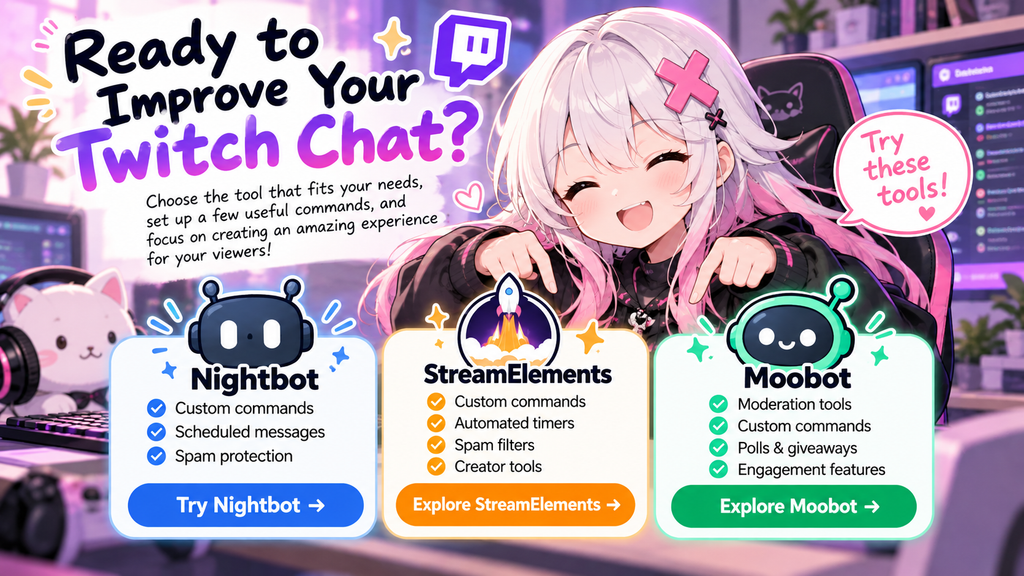
Ready to improve your Twitch chat?
Choose the tool that makes your streams easier to manage, then focus on what matters most: creating a great experience for your viewers.
Editorial note: GameToolly may earn a commission from qualifying purchases made through affiliate links, where applicable. This article includes official service links; replace them with approved affiliate links only if you have an active, authorized partnership. This does not affect the price paid by the reader where the applicable affiliate program specifies no additional cost.