If you stream on Twitch, you are already creating content that could reach a much larger audience. But most viewers will never watch an entire three-hour livestream just to find your best moments.
That is where YouTube Shorts comes in.
By turning your Twitch streams into short, vertical videos, you can share funny reactions, impressive gameplay, memorable fails, and useful tips with people who have never visited your Twitch channel.
The challenge is finding the best moments and editing them without spending hours reviewing footage. AI-powered clipping tools can make this process easier.
In this guide, you will learn how to turn Twitch streams into YouTube Shorts, how to use OpusClip to speed up editing, and how to create a repeatable workflow for your gaming content.
Why Turn Twitch Streams into YouTube Shorts?
Repurposing livestreams gives your existing content another opportunity to reach viewers.
1. Reach a New Audience
Some people prefer short videos instead of livestreams. YouTube Shorts can introduce your gameplay and personality to viewers who might not otherwise discover your Twitch channel.
2. Get More Value from Every Stream
You have already spent time streaming. Instead of letting your best moments disappear into a long VOD, you can turn them into multiple short videos.
3. Create Content More Consistently
You do not need to record something new every time you want to publish a Short. Your saved streams can become a source of future content.
Short videos do not guarantee new followers, but they give interested viewers another way to discover your content.
What You Need to Get Started
Before creating your first Short, prepare these essentials:
- A Twitch VOD: A saved livestream or recording with interesting moments.
- A video editing or clipping tool: Use it to select highlights and create vertical videos.
- Captions: Subtitles help viewers follow commentary and reactions.
- A YouTube channel: You need a channel to upload your finished Shorts.
- A repeatable workflow: A simple process makes regular publishing easier.
You can edit everything manually, but AI clipping tools can help reduce the time spent reviewing long recordings.
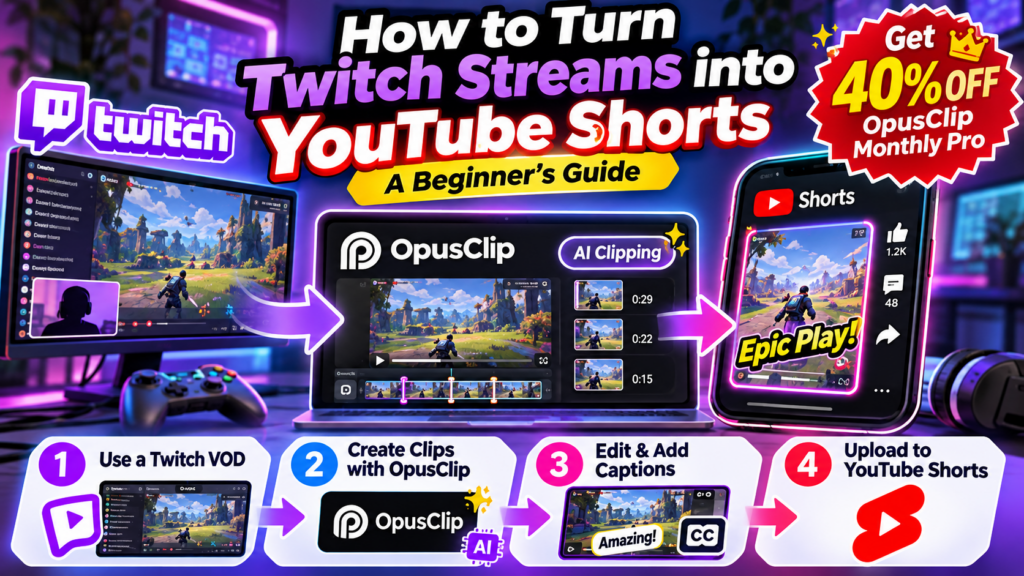
Method 1: Use OpusClip to Turn Twitch Streams into Shorts
If you regularly stream for several hours, manually searching through every recording can be time-consuming.
OpusClip is an AI-powered video clipping tool that can help turn longer videos into shorter clips. It is worth testing if you want to repurpose gaming content without editing every clip from scratch.
Step 1: Choose a Twitch VOD
Start with a stream that contains interesting gameplay, funny reactions, exciting matches, or useful commentary.
Choose a recording with several potential highlights. For your first attempt, you do not need to process your entire streaming archive.
Make sure you have access to the footage and the necessary rights to reuse its audio and video.
Step 2: Import Your Video
Open OpusClip and follow its current instructions to upload or import your recording.
The available import methods and supported formats may change, so check the options shown in your account.
Step 3: Find Potential Highlights
If AI highlight detection is available for your selected workflow, use it to identify moments that could work as short videos.
Gaming highlights worth reviewing include:
- An unexpected victory or comeback
- A funny mistake or reaction
- A surprising in-game event
- An impressive play
- A useful tip or strategy
- A memorable interaction with teammates
Do not automatically publish every suggested clip. Review each one and make sure the moment is entertaining without requiring viewers to watch the entire livestream.
Step 4: Convert the Clip to a Vertical Format
YouTube Shorts are designed for vertical viewing. A 9:16 layout is a useful starting point.
Check the crop carefully. Make sure viewers can see the important gameplay details and your facecam if it adds value.
Automatic cropping may occasionally hide important game information, so adjust the framing when necessary.
Step 5: Add and Review Captions
Captions can make gaming clips easier to follow, especially when viewers watch without sound.
Review automatically generated subtitles for:
- Gaming terminology
- Player and character names
- Short reactions
- Technical terms
- Incorrectly recognized words
Keep captions readable and avoid covering important gameplay elements.
Step 6: Preview and Export
Watch the entire clip before exporting.
Check that the opening catches attention, the main moment is visible, and the ending does not cut off the action.
Once you are happy with the result, export the video using a format and resolution supported by YouTube’s current requirements.
Try OpusClip with a 40% First-Month Discount
If you want to test an AI-assisted clipping workflow, OpusClip is worth exploring.
Get 40% off your first month of OpusClip Monthly Pro through the campaign link below.
The discount is for the first month of the Monthly Pro subscription. Check the offer and eligibility shown on the sign-up page before purchasing.
Method 2: Create YouTube Shorts Manually
You do not have to use AI to create Shorts. Manual editing is another option if you want complete control over every cut.
Step 1: Find an Interesting Moment
Review your Twitch VOD and note the timestamps of exciting, funny, or informative moments.
Choose one main idea for each video. A single clear moment is usually easier to follow than several unrelated events.
Step 2: Trim the Footage
Open your recording in a video editor and remove unnecessary pauses, long introductions, and unrelated gameplay.
Start close to the interesting moment, but leave enough context for viewers to understand what is happening.
Step 3: Create a Vertical Layout
Set up a vertical project. Depending on the game, you can crop the gameplay, place it above a facecam, or use a layout that keeps the important parts visible.
Avoid shrinking the gameplay so much that text and interface elements become difficult to read on a phone.
Step 4: Add Captions and Sound
Add subtitles where they improve understanding. Balance the volume of game audio and commentary.
Only use music and audio that you have permission to publish. Music permitted during a Twitch livestream is not necessarily cleared for reuse in a YouTube video.
Step 5: Export and Upload
Preview the final video on a small screen if possible. Check for awkward cuts, unreadable text, black bars, and audio issues before uploading.
Manual editing takes more time at first, but saving a reusable project template can speed up future videos.
How to Make Twitch Clips More Engaging
Creating a Short is only the first step. The way you present the moment can influence whether viewers keep watching.
Start with an Interesting Moment
Avoid long introductions. Start close to the moment that makes someone curious, then provide enough context to understand what is happening.
Focus on One Idea
A Short should have a clear purpose. Instead of trying to summarize an entire match, create separate clips for individual highlights.
Make Captions Easy to Read
Use short phrases, sensible line breaks, and sufficient contrast. Do not cover important game elements with oversized text.
Give the Ending a Purpose
A clip can end with the payoff, a funny reaction, or a concise conclusion. Avoid adding a long outro that makes viewers wait for the video to finish.
A Simple Weekly Workflow for Streamers
You do not need to upload a Short after every stream. Start with a manageable routine and adjust it to your schedule.
| Stage | What to do |
|---|---|
| After streaming | Save the VOD and note memorable moments |
| Clip selection | Pick two or three promising highlights |
| Editing | Crop, trim, caption, and review |
| Publishing | Upload with a clear title and description |
| Review | Check which videos attracted views and engagement |
If you already use Streamlabs as part of your streaming setup, see our guide to using Streamlabs for gaming for more help with your streaming workflow.
Common Mistakes to Avoid
Uploading clips without reviewing them. AI can miss context, crop the wrong area, or generate incorrect captions. Always watch the final video before publishing.
Making every clip too long. Include enough context for the moment to make sense, but remove anything that does not contribute to the story.
Ignoring copyright. Make sure you have the necessary rights to use gameplay footage, music, sound effects, and third-party material.
Expecting instant growth. Some videos will perform better than others. Use your results to learn which moments appeal to your audience.
Forgetting the original audience. Short-form videos should represent your personality and content accurately. Avoid misleading titles or edits.
Frequently Asked Questions
Can I turn any Twitch stream into a YouTube Short?
You can use suitable footage from your streams, provided you have the necessary rights and permissions. Check for copyrighted music, third-party content, and applicable platform rules before uploading.
Do I need AI to make YouTube Shorts?
No. You can create Shorts manually with a video editor. AI tools can reduce some editing work, particularly when you need to find highlights or prepare multiple clips.
How long should a gaming Short be?
Choose a length that fits the moment. A short, focused clip can work well when it communicates the idea quickly, while a more complex play may need additional context. Check YouTube’s current Shorts requirements before publishing.
Should I upload the same clip to multiple platforms?
You can adapt suitable clips for other platforms, but check each platform’s format, music rules, and content policies. Review the final version on each platform rather than assuming one export will work perfectly everywhere.
Is OpusClip worth trying for gaming content?
It may be useful if you regularly produce long recordings and want help preparing short clips. Test it with a few streams first and evaluate highlight quality, cropping, caption accuracy, and time saved before deciding whether a paid plan makes sense.
Final Thoughts
Turning Twitch streams into YouTube Shorts is a practical way to give your existing content more opportunities to reach new viewers.
Start by selecting a strong moment, then trim the footage, create a vertical layout, review the captions, and publish a polished clip. You can do this manually or use a tool such as OpusClip to help speed up parts of the process.
The most important thing is to build a workflow you can maintain. Experiment with different types of highlights, learn from your results, and keep improving your videos over time.
Ready to Repurpose Your Twitch Streams?
Spend less time searching through long recordings and explore an AI-assisted clipping workflow with OpusClip.
Disclosure: GameToolly may earn a commission if you purchase through qualifying affiliate links. The discount offer is subject to the terms and eligibility displayed on the OpusClip sign-up page.