Want to turn your gaming streams into TikTok videos, YouTube Shorts, and Instagram Reels without spending hours editing? The right clipping tool can help you find exciting moments, create short videos, and share your best gameplay with a wider audience.
Whether you stream competitive games, create funny gaming moments, or upload long gameplay sessions, there are several tools that can simplify your workflow.
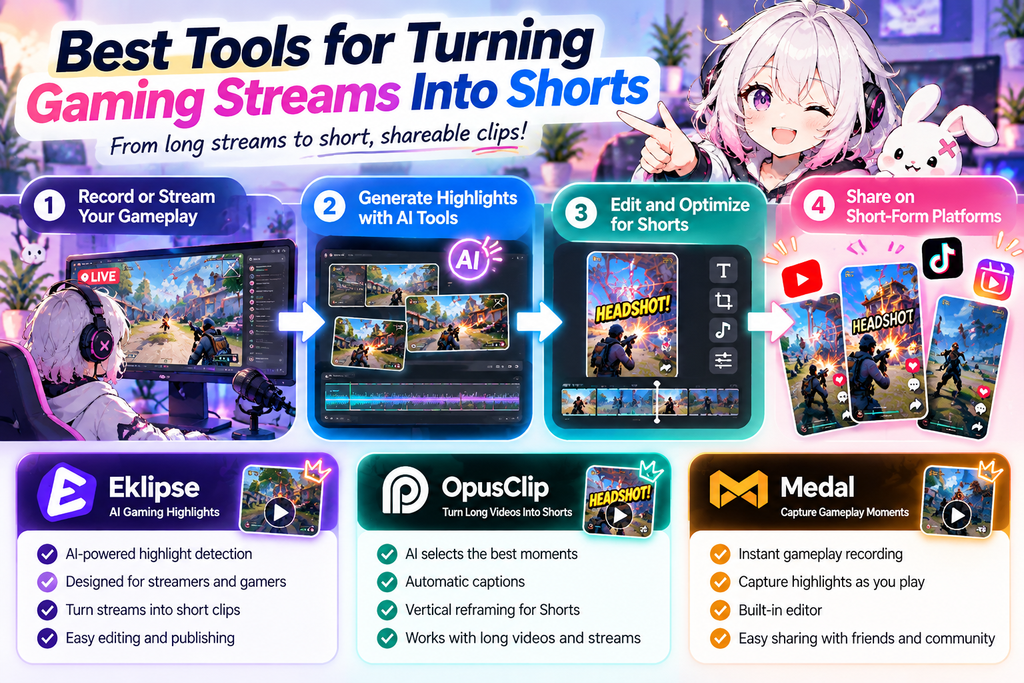
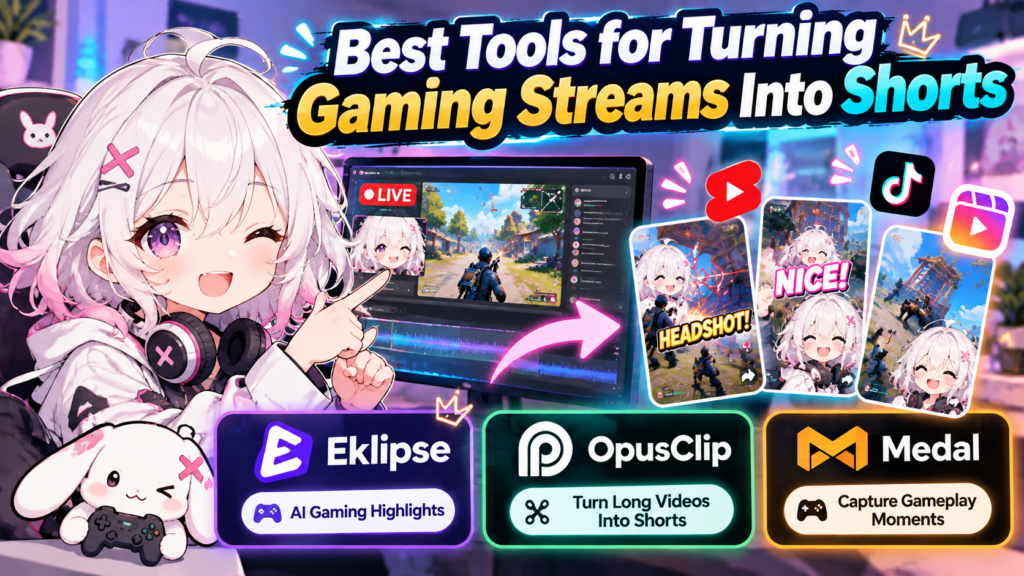
In this guide, we’ll compare three options for gaming creators: Eklipse for AI-powered gaming highlights, OpusClip for repurposing longer videos, and Medal for capturing and sharing gameplay clips.
Disclosure: This article contains affiliate links. We may earn a commission if you purchase through our links, at no additional cost to you.
Quick Comparison: Which Gaming Clip Tool Is Best?
| Tool | Best For | Main Strength |
|---|---|---|
| Eklipse | Twitch and gaming stream highlights | Automatically finding notable moments in gaming streams |
| OpusClip | Turning long videos into short-form content | AI-assisted clipping, captions, and vertical reframing |
| Medal | Capturing gameplay as you play | Quick recording, editing, and sharing |
Each tool serves a slightly different purpose. The best choice depends on whether you need to capture gameplay, automatically find highlights, or repurpose existing videos for multiple social platforms.
1. Eklipse: Best for Automatic Gaming Highlights
Eklipse is designed specifically for gamers and streamers who want to turn their broadcasts into short clips.
Instead of manually reviewing an entire stream, you can connect a supported channel or submit a video to let the platform identify potential highlights. Depending on the supported game and features available on your plan, it can help find exciting plays and prepare clips for short-form platforms.
Key Features
- AI-assisted detection of gaming highlights
- Tools for editing and converting clips into vertical videos
- Support for connecting supported streaming channels
- Options for preparing content for TikTok, Instagram Reels, and YouTube Shorts
- Additional editing and publishing features, depending on your plan
How to Use Eklipse
- Create an account and connect a supported streaming channel, or submit a compatible video.
- Select a stream or video you want to turn into clips.
- Let Eklipse process the footage and identify potential highlights.
- Review the generated clips and remove moments that don’t fit your content.
- Adjust the framing, captions, or other available editing options.
- Export or publish your finished clips using the available tools.
Pros and Cons
Pros
- Built around gaming and streaming content.
- Can reduce the time spent searching through long broadcasts.
- Helps prepare gameplay highlights for vertical video platforms.
Cons
- AI may miss important moments or select clips without enough context.
- Available features and processing limits depend on your plan.
- You should review every clip before publishing.
Best for: Streamers who regularly broadcast gameplay and want help finding highlights without reviewing every minute manually.
Explore the official Eklipse website to check its current features and plans.
2. OpusClip: Best for Repurposing Long Videos
OpusClip is an AI video clipping tool that turns longer videos into shorter, shareable content. It can be useful for gaming creators who publish full matches, commentary videos, tutorials, reactions, or other longer recordings.
Unlike a gaming-specific highlight tool, OpusClip is designed for a broader range of video formats. That makes it worth considering if your content includes more than gameplay alone.
Key Features
- AI-assisted selection of potential short clips
- Automatic captions
- Vertical reframing for short-form platforms
- Editing options for adjusting generated clips
- Workflows for repurposing supported video links or uploaded files
How to Use OpusClip for Gaming Content
- Choose a longer video, such as a gameplay commentary, tutorial, or stream recording.
- Import the video using a supported link or upload method.
- Let OpusClip analyze the footage and generate potential short clips.
- Review the suggested moments and choose the strongest ones.
- Adjust captions, framing, and timing where necessary.
- Export the finished clips or use the available publishing options.
For gaming videos, review the output carefully. An AI tool may identify an exciting sentence but miss the gameplay context that makes the moment interesting.
Pros and Cons
Pros
- Useful for repurposing longer videos.
- Can reduce repetitive editing work.
- Offers captioning and reframing tools for short-form content.
Cons
- May require manual adjustments to keep important gameplay action visible.
- AI-selected moments aren’t guaranteed to perform well.
- Features and usage limits vary by plan.
Best for: Gaming creators who already have long videos and want to create multiple short-form posts from them.
Ready to create more short videos from your gaming content?
Try OpusClip and explore its AI-assisted clipping workflow.
For a detailed walkthrough, read our guide: How to Use OpusClip.
3. Medal: Best for Capturing Gameplay Moments
Medal takes a different approach. Rather than focusing primarily on repurposing long videos, it helps you capture gameplay moments while you’re playing, then edit and share those clips.
This is useful when you want to save an unexpected win, a funny team interaction, an impressive play, or a memorable mistake without recording and editing an entire session afterward.
Key Features
- Background gameplay capture and instant replay
- Customizable clip length and capture hotkeys
- A built-in editor for trimming and adding effects
- Options for adding text, music, and other creative elements
- Shareable links for sending clips to friends or posting online
How to Use Medal
- Download and install Medal on a supported device.
- Open the app and configure your recording settings.
- Set a clip length and choose a convenient hotkey.
- Launch your game and capture moments as you play.
- Open your saved clips and trim them in the editor.
- Share the finished clip or use it as source footage for a separate video-editing workflow.
Medal’s default PC clipping hotkey is F8, although you can change it in the settings.
Pros and Cons
Pros
- Convenient for capturing unexpected gameplay moments.
- Includes basic editing and sharing features.
- Useful for collecting clips throughout a gaming session.
Cons
- Capturing a moment is different from automatically turning a long stream into a polished series of Shorts.
- Some features, including certain storage and recording options, may require a paid plan.
- You may still need another editor for more advanced video projects.
Best for: Players who want an easy way to capture, organize, and share gameplay moments as they happen.
Visit the official Medal website to explore its recording and editing features.
How to Choose the Right Tool
Before signing up, think about where your footage comes from and what you want to publish.
Choose Eklipse if You Stream Regularly
If your Twitch, YouTube, or other supported streams contain lots of action, an AI gaming highlight tool can help you find moments worth reviewing. It is especially useful when manually searching through a long broadcast becomes a regular chore.
Choose OpusClip if You Already Have Long Videos
If you publish gameplay commentary, tutorials, reactions, or other longer videos, OpusClip can help you turn that material into shorter pieces of content. It’s also worth considering if your channel covers several topics rather than gameplay highlights alone.
Choose Medal if You Need to Capture Moments First
If you often forget to save a great play until it’s too late, Medal can help you capture moments during gameplay. You can then share them directly or edit them into more polished content later.
Tips for Making Better Gaming Shorts
Choosing a tool is only part of the process. The clip itself still needs to give viewers a reason to keep watching.
Start with the interesting moment. Avoid long introductions. Show the clutch play, unexpected reaction, funny mistake, or important result as early as possible.
Keep the context clear. A great play may be confusing if viewers cannot tell what happened. Use a short caption or a little setup when necessary.
Check vertical framing. Make sure the important gameplay action remains visible after converting a horizontal video into a vertical format.
Use captions carefully. Captions can help viewers follow commentary, but they shouldn’t cover important interface elements or gameplay.
Review audio before publishing. Check microphone volume, game sound, background music, and any voice chat you include.
Create different versions when useful. A funny moment might work best as a quick meme, while a competitive highlight may benefit from a little context and a clear ending.
Track what your audience enjoys. Review retention, views, and engagement over time. Use those results to decide which moments and formats are worth making again.
Frequently Asked Questions
What is the best tool for making gaming Shorts?
It depends on your workflow. Eklipse focuses on gaming highlights, OpusClip helps repurpose longer videos, and Medal is useful for capturing gameplay moments. Try the workflow that best matches your source footage.
Can I turn a full gaming stream into multiple clips?
Yes, tools such as Eklipse and OpusClip can help generate multiple short clips from supported longer videos or streams. Results depend on the source material, available features, and plan limits. Always review the clips before posting.
Do I need video-editing experience?
Not necessarily. These tools can simplify capturing, clipping, captioning, or reframing videos. Basic editing knowledge is still helpful for improving timing, context, and presentation.
Should I post the same clip on every platform?
You can reuse a clip across platforms, but check each platform’s aspect ratio, length requirements, audio rules, and content guidelines. You may also want to adjust captions or the opening moment for each audience.
Are AI-generated clips ready to publish without editing?
Not always. Automated tools can save time, but they may select an incomplete moment, crop out important gameplay, or generate captions that need correction. A quick review can improve the final result.
Final Thoughts
The right gaming clip tool can help you spend less time searching through footage and more time creating content.
Eklipse is worth exploring if you want help finding highlights in gaming streams. OpusClip is a strong option to consider when repurposing longer videos into short-form content. Medal is useful when your priority is capturing and sharing gameplay moments as they happen.
Start with the tool that fits your current workflow, test it with real footage, and focus on publishing clips that are entertaining, clear, and easy to watch.
If you already have longer gaming videos ready to repurpose, try OpusClip and see whether its clipping workflow fits your content strategy.