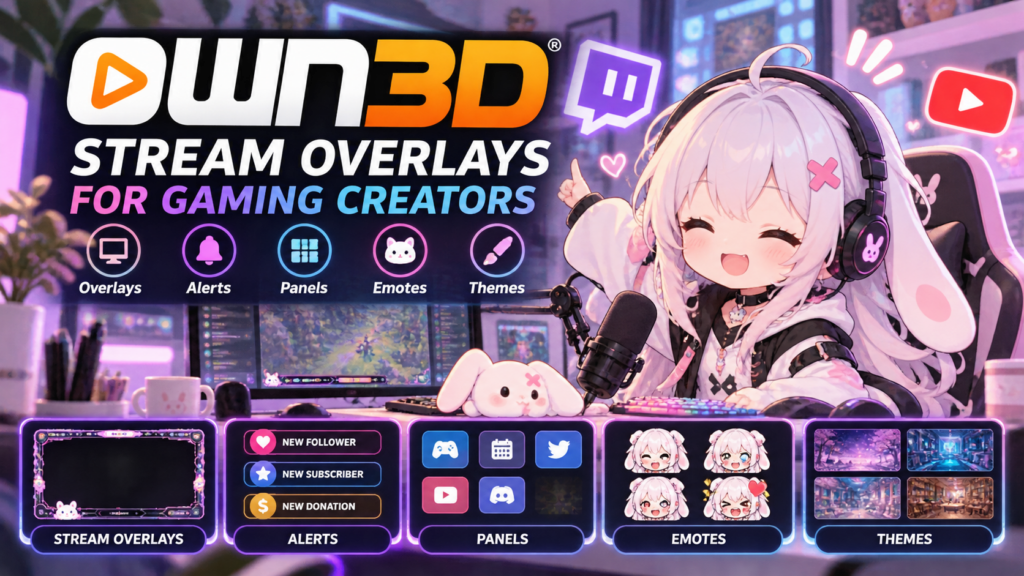
Want to make your gaming stream look more professional? OWN3D offers stream overlays, alerts, panels, emotes, and other visual assets that help creators build a consistent streaming style.
In this beginner-friendly guide, you’ll learn what OWN3D offers, how to choose the right assets, and how to use them with your streaming setup.
What Is OWN3D?
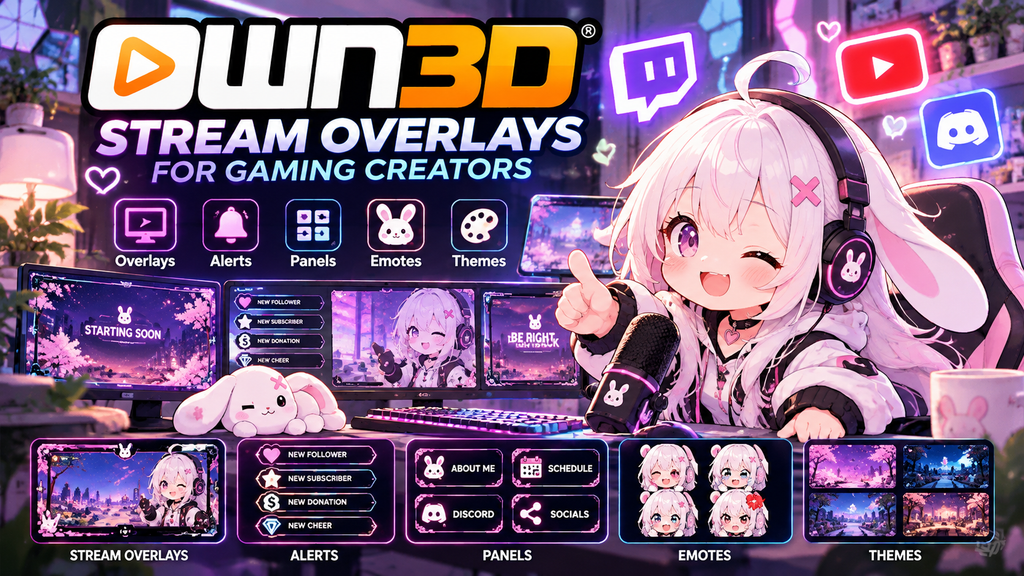
OWN3D is a platform for streaming graphics and creator assets. It offers visual elements designed to help Twitch, YouTube, and other streaming creators personalize their channels.
Depending on the product, you can find:
- Stream overlays and webcam frames
- Follower, subscriber, and donation alerts
- Stream starting, break, and ending screens
- Channel panels and emotes
- Matching graphics for a consistent visual theme
The available features and compatibility can vary by product, so check the details before purchasing.
What Can You Create with OWN3D?
1. Stream Overlays
Overlays add visual frames and design elements around your gameplay, webcam, or other on-screen content. A matching overlay can make your stream easier to recognize without distracting viewers from the game.
2. Alerts and Notifications
Alerts can display events such as new followers or subscribers. Choose a style that fits your channel and make sure the animations do not cover important gameplay information.
3. Stream Screens and Panels
Starting, break, and ending screens help organize different parts of a broadcast. Channel panels can also make information such as social links and schedules easier to find.
4. Emotes and Matching Graphics
Emotes and coordinated graphics can help give your channel a recognizable identity. If you use several assets together, choosing a consistent color palette can make the overall design feel more polished.
How to Choose the Right Stream Overlays
Before choosing a design, consider these points:
- Match your content: Select graphics that suit your game and channel personality.
- Keep gameplay visible: Avoid overlays that hide important interface elements.
- Check compatibility: Confirm that the asset works with your streaming software and platform.
- Look for a consistent theme: Matching alerts, panels, and screens can create a unified look.
- Review the price: Check whether the item is free or paid and review the license terms before using it.
You do not need to add every available graphic. Start with a clean overlay and a few essential alerts, then expand your setup as needed.
How to Set Up OWN3D Overlays
The exact setup depends on the asset you choose. A typical workflow looks like this:
- Browse OWN3D and choose an overlay or graphics package.
- Check the product description, supported software, and installation instructions.
- Download or access the asset according to the product instructions.
- Open your streaming software, such as Streamlabs Desktop or OBS Studio.
- Add the asset using the method specified by the product. This may involve importing files, adding image sources, or using a provided setup tool.
- Preview your stream and check that the overlay does not block gameplay, alerts, or webcam content.
- Test the layout before going live.
If you use Streamlabs, see our beginner’s guide to setting up your streaming tools: How to Use Streamlabs for Gaming: A Beginner’s Guide.
OWN3D vs. Streamlabs
OWN3D and Streamlabs can serve different purposes in a creator’s workflow.
OWN3D focuses on visual assets such as overlays, alerts, panels, and other streaming graphics.
Streamlabs provides streaming software and creator tools, including features for managing a live broadcast.
Some creators may use both: graphics from an asset provider and streaming software to organize the broadcast. Compare the specific products and features you need rather than assuming one replaces the other.
For more details, read our Streamlabs beginner’s guide.
Is OWN3D Worth It?
OWN3D may be worth considering if you want a coordinated streaming design without creating every graphic from scratch. Ready-made assets can save design time and help a channel look more consistent.
However, the best choice depends on your budget, preferred style, streaming software, and the license terms of the assets. Review the current product details and pricing before deciding.
Try OWN3D for Your Stream
Ready to upgrade your stream? Explore OWN3D’s overlays, alerts, and graphics to find a style that fits your channel.