A great gaming thumbnail helps viewers understand your video at a glance. Whether you upload gameplay highlights, tutorials, game reviews, or funny moments, a clear and attractive thumbnail can make your content look more professional.
You don’t need advanced graphic design skills to get started. Canva provides ready-made YouTube thumbnail templates, a drag-and-drop editor, and design elements that beginners can customize.
In this guide, you’ll learn how to create gaming thumbnails with Canva, choose readable text, use screenshots effectively, and export your design for YouTube.
What Is Canva?
Canva is an online design tool for creating graphics, presentations, social media posts, and YouTube thumbnails.
For gaming creators, Canva can help turn a gameplay screenshot into a thumbnail with a clear headline, strong colors, and visual elements that match the video.
You can start with a template or build your own design from scratch.
Why Use Canva for Gaming Thumbnails?
1. Start with a Template
Instead of designing everything from a blank page, choose a YouTube thumbnail template and customize it for your game and video topic.
Replace the sample images, change the text, and adjust the colors to match your channel.
2. Make Text Easy to Read
Gaming thumbnails often appear small on phones and in recommended-video lists. Use a short headline and a bold font.
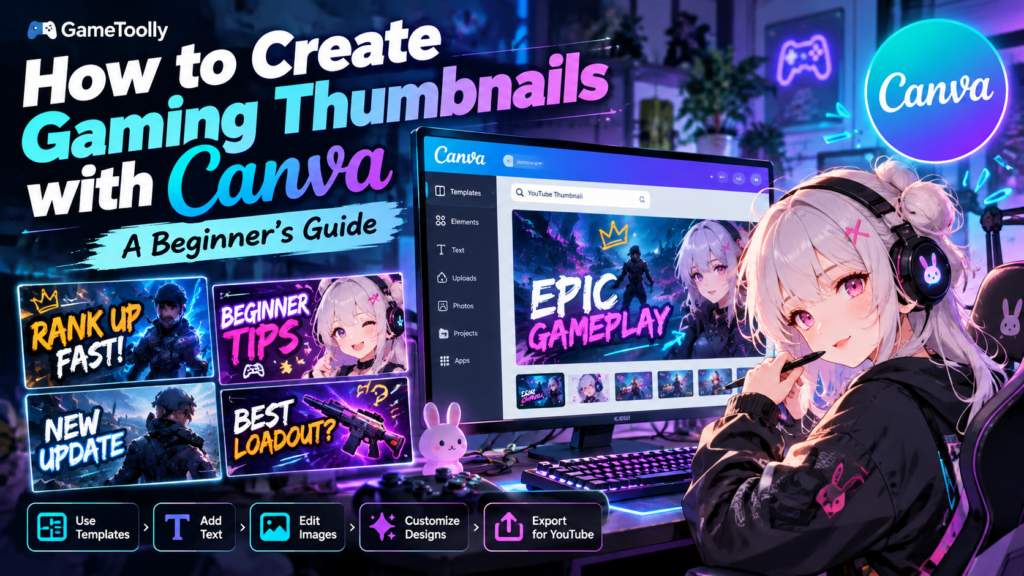
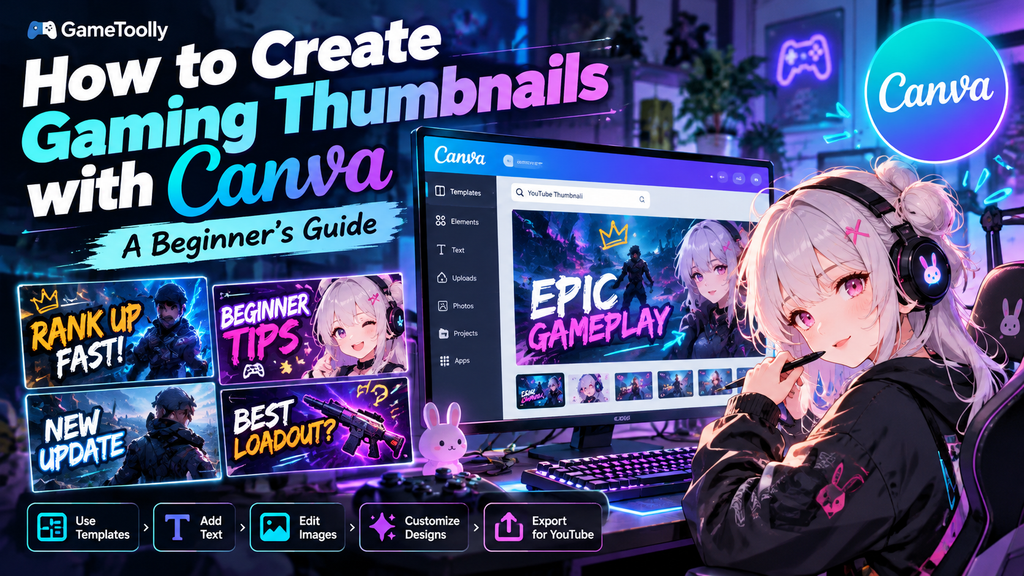
For example, instead of writing a full sentence, try phrases such as:
- INSANE CLUTCH!
- BEGINNER TIPS
- NEW UPDATE
- BEST LOADOUT?
Make sure the wording accurately reflects the video.
3. Use Your Own Gameplay Screenshots
A screenshot from your actual gameplay can make the thumbnail relevant to the video.
Choose a moment that communicates the main idea, such as a surprising win, a difficult boss, a funny mistake, or an important game feature.
Avoid adding so many effects that viewers can no longer understand the image.
4. Keep Your Channel Style Consistent
Choose a small set of colors, fonts, and visual elements for your channel.
Using a consistent style across multiple thumbnails can make your videos easier to recognize. You can still change the main image and headline for each upload.
How to Create a Gaming Thumbnail in Canva
Step 1: Open Canva
Visit Canva and search for “YouTube Thumbnail.”
Choose a blank design or select a template that fits your gaming content.
Step 2: Choose a Gameplay Image
Upload a screenshot from your game or select an appropriate image you have permission to use.
Place the main subject where it will remain visible after the thumbnail is displayed at a smaller size.
Step 3: Add a Short Headline
Insert a text box and write a concise headline.
Use a font size large enough to read on a mobile screen. Keep important words away from the edges and avoid covering the main subject.
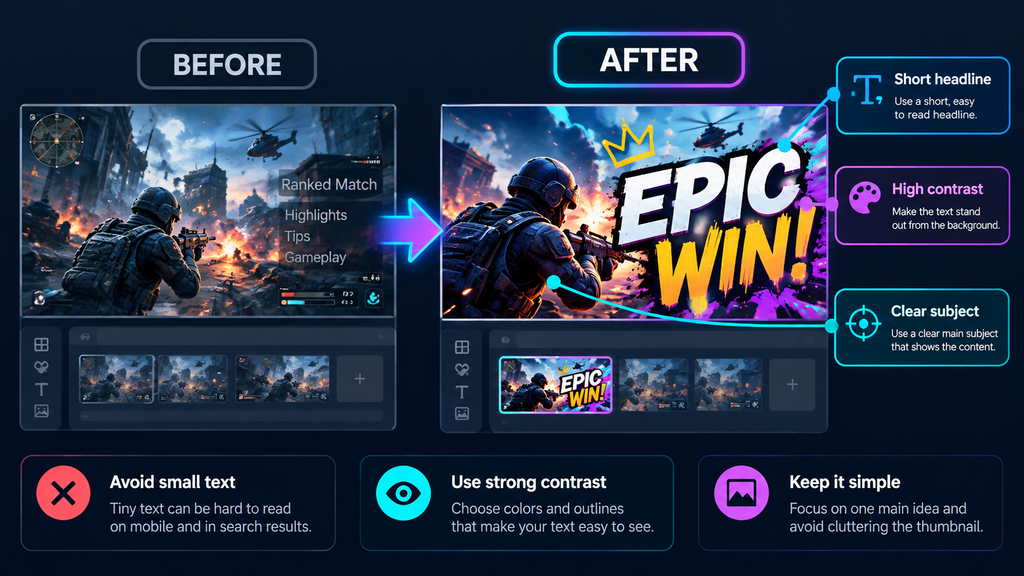
Step 4: Improve Contrast
If the text blends into the background, adjust the background brightness or use a text outline, shadow, or contrasting shape where available.
The goal is readability, not adding as many effects as possible.
Step 5: Add Supporting Elements
You can use arrows, shapes, icons, or other design elements to draw attention to an important detail.
Use these sparingly. Too many visual elements can make the thumbnail confusing.
Step 6: Check the Thumbnail at a Small Size
Zoom out or preview the design at a smaller size.
Ask yourself three questions:
- Can I read the headline quickly?
- Is the main subject immediately obvious?
- Does the thumbnail accurately represent the video?
If the answer to any question is no, simplify the design.
Step 7: Download Your Thumbnail
Download the finished design as an image file and check that it meets YouTube’s current thumbnail requirements before uploading it.
For standard YouTube videos, a 16:9 layout is generally recommended. Canva’s YouTube thumbnail design type is a convenient starting point for this format.
Gaming Thumbnail Design Tips
Use One Main Idea
A thumbnail should communicate one central idea rather than summarize the entire video.
For example, a boss-fight video might focus on the boss and a short phrase describing the challenge.
Make the Subject Stand Out
Use contrast, spacing, and positioning to separate the main subject from the background.
If the screenshot is already visually busy, reduce unnecessary decorations instead of adding more.
Avoid Misleading Designs
The thumbnail should match the actual content. Misleading images or exaggerated claims may disappoint viewers and damage trust.
Compare Results Over Time
Review your YouTube analytics to understand how viewers respond to different thumbnails. Consider impressions, click-through rate, and watch time together rather than judging a design from clicks alone.
Canva vs. Other Gaming Creator Tools
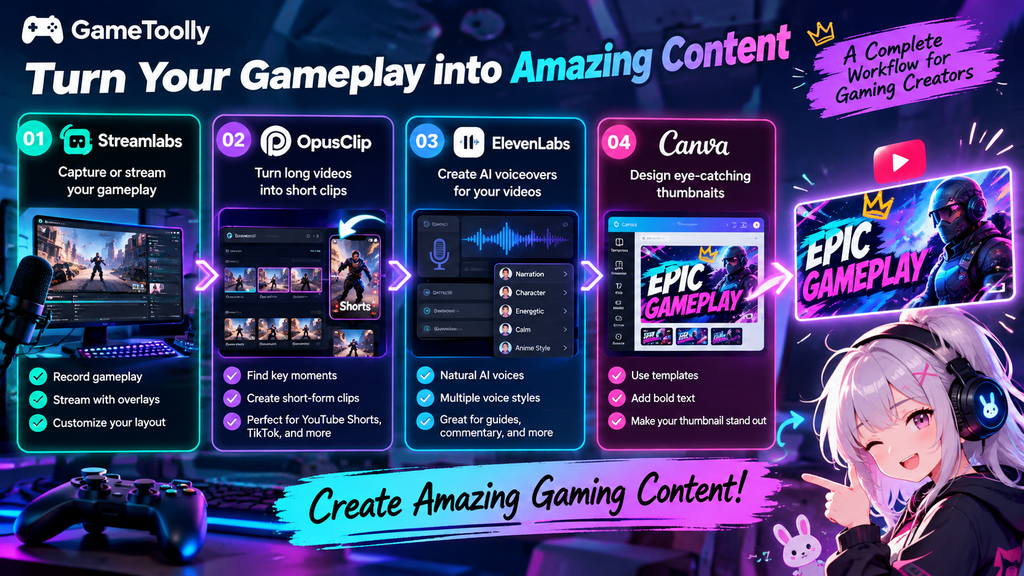
Canva focuses on visual design, while other creator tools solve different parts of the production process.
- Canva: Create thumbnails and other graphics.
- OpusClip: Help repurpose longer videos into short-form clips.
- ElevenLabs: Create AI voiceovers for gaming content.
- Streamlabs: Capture or stream gameplay and customize streaming layouts.
These tools can complement one another in a gaming content workflow.
Is Canva Worth Using for Gaming Thumbnails?
Canva is worth trying if you want a straightforward way to create thumbnails without learning a complex image editor first.
Start with a template, keep the headline short, and focus on making the main subject easy to understand. You can develop a more recognizable channel style as you publish more videos.
Ready to create your next gaming thumbnail?
Try Canva’s YouTube thumbnail maker and customize a design for your next upload.