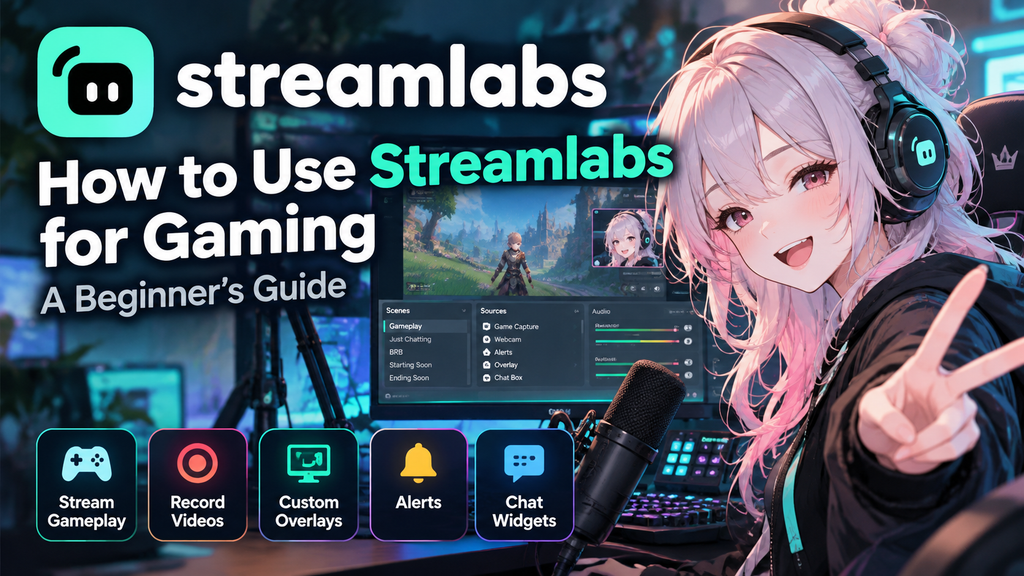
Starting a gaming channel involves more than just playing games. You also need to capture gameplay, manage audio, customize your stream, and keep viewers engaged.
Streamlabs brings many of these tools together, making it easier for gaming creators to start streaming, record videos, and build a recognizable channel.
In this guide, you’ll learn how to use Streamlabs for gaming, set up your first stream, customize your layout, and create content for platforms such as Twitch and YouTube.
What Is Streamlabs?
Streamlabs is a content creation platform that offers tools for livestreaming, video recording, overlays, alerts, chat widgets, and more.
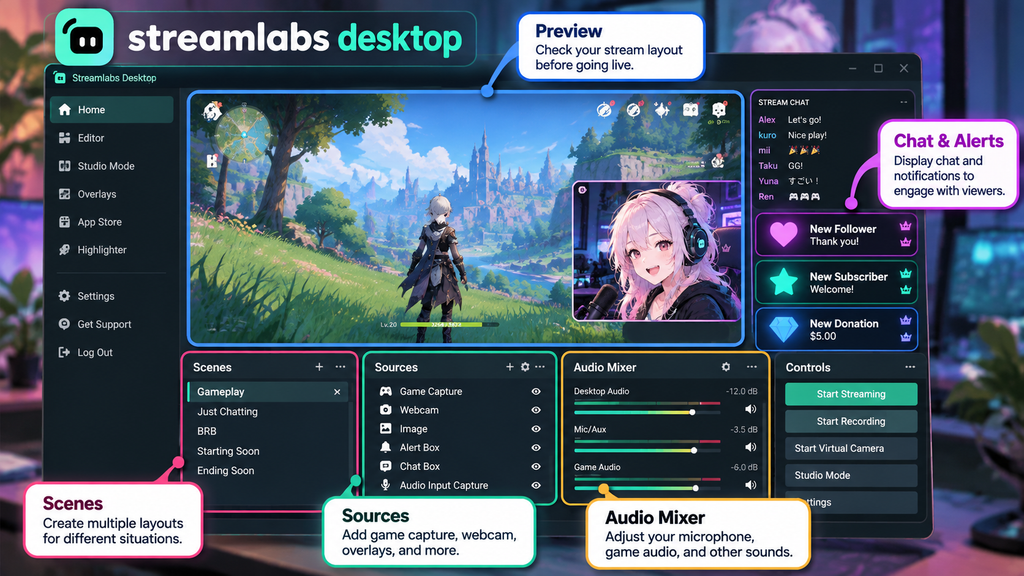
Streamlabs Desktop is one of its main products. It allows creators to capture gameplay, manage scenes, configure audio, and stream to supported platforms.
Some features are available for free, while optional paid plans unlock additional tools and customization options.
For gaming creators, Streamlabs can help with:
- Livestreaming gameplay
- Recording videos for YouTube
- Displaying follower and subscriber alerts
- Customizing a stream with overlays
- Adding chat boxes and other widgets
- Managing viewer interactions
Why Use Streamlabs for Gaming?
1. Stream Your Gameplay
Streamlabs Desktop lets you capture your game and broadcast it to supported streaming platforms.
You can create a layout that includes your gameplay, microphone audio, webcam, and other elements.
2. Customize Your Stream
Overlays, scenes, and widgets help make your stream look more professional.
You can create different layouts for gameplay, chatting, breaks, and other parts of your broadcast.
3. Engage With Your Audience
Alert boxes can display notifications when viewers follow, subscribe, or support your channel.
Chat boxes and other widgets can also make your stream more interactive.
4. Record Gaming Videos
You don’t have to livestream to benefit from Streamlabs.
You can record gameplay and use the footage to create tutorials, reviews, highlights, and other videos.
How to Use Streamlabs for Gaming
Step 1: Download and Install Streamlabs Desktop
Visit the official Streamlabs website and download Streamlabs Desktop for your computer.
Install the application and follow the setup instructions.
When you first open it, choose whether you want to livestream, record videos, or use the available tools for both purposes.
You may also need to grant access to your microphone and camera.
Step 2: Connect Your Streaming Platform
Sign in and connect the platform you want to use, such as Twitch or YouTube.
Follow the prompts to authorize your account.
Before going live, check that the correct account is connected and that your stream title and other details are ready.
Step 3: Capture Your Gameplay
Create a scene for your gaming content and add a source to capture the game.
Depending on your setup, you may be able to use game capture, window capture, or display capture.
Choose the option that works best for your game and operating system.
Make sure the game appears correctly in the preview before continuing.
Step 4: Set Up Your Microphone and Audio
Clear audio is important for gaming content.
Check that Streamlabs is using the correct microphone and that your game audio is being captured.
Play a short test recording and listen for problems such as excessive background noise, distorted audio, or microphone volume that is too low.
Adjust the audio levels before your first livestream or recording.
Step 5: Add an Overlay
An overlay can include borders, labels, channel branding, and other visual elements.
Streamlabs offers overlay options that can help you customize the appearance of your stream.
Choose a design that matches your channel and keeps the gameplay easy to see.
Avoid covering important parts of the game with large graphics or unnecessary animations.
Step 6: Add Alerts and Widgets
Alerts can notify viewers when certain events happen during your stream.
For example, an alert box can display a notification when someone follows or subscribes to your channel.
You can also consider adding a chat box, event list, or goal widget.
Start with a few useful elements rather than adding everything at once.
Step 7: Test Your Stream
Before going live, check the following:
- Gameplay is visible in the preview.
- Microphone and game audio are working.
- Your overlay is positioned correctly.
- Alerts and widgets display as expected.
- Your stream settings are appropriate for your internet connection.
A short test recording is a good way to catch problems before viewers see them.
Step 8: Start Streaming or Recording
When everything is ready, use the available controls to start your livestream or recording.
If you’re livestreaming, confirm the destination and stream details before going live.
If you’re recording, check where the video file will be saved so you can find it later.
How to Use Streamlabs for YouTube Gaming Videos
Streamlabs can be useful even if you don’t want to livestream.
You can record gameplay and turn it into different types of content.
Gaming Tutorials
Record a walkthrough and explain the steps with your microphone.
Game Reviews
Capture gameplay footage to illustrate your opinions about a game’s mechanics, graphics, or performance.
Gameplay Highlights
Save interesting moments and edit them into a shorter video.
YouTube Shorts
Short clips can help you share funny moments, impressive plays, and quick tips.
If you want to turn longer gaming videos into short-form content, you can also use OpusClip to help identify clips and prepare them for vertical formats.
Related guide: How to Use OpusClip: Turn Gaming Videos into Shorts with AI
Can You Use AI Voiceovers With Streamlabs?
Yes. You can create narration separately and then combine the generated audio with your gaming footage during editing or recording.
For example, you might use an AI voice to narrate a tutorial, explain a strategy, or introduce a gameplay highlight.
ElevenLabs is one option for generating AI voiceovers from text.
You can write your script, generate the narration, and then combine it with your gameplay footage using your preferred editing workflow.
Related guide: How to Use ElevenLabs for Gaming: AI Voiceovers
Streamlabs Pricing: Is It Free?
Streamlabs offers free tools for livestreaming and content creation, along with optional paid plans.
The free options include useful features such as streaming, recording, basic overlays, alerts, and selected widgets. Paid plans provide access to additional features, which may include multistreaming and more customization options.
The exact features and prices can change, so check the official Streamlabs website before choosing a plan.
For beginners, starting with the free features is a practical way to test the software before paying for extra tools.
Streamlabs Tips for Gaming Creators
Keep Your Layout Simple
Your gameplay should remain the main focus. Use overlays and widgets only when they add value.
Check Your Audio Before Every Stream
Poor audio can make an otherwise good stream difficult to watch. Test your microphone and game volume regularly.
Record Important Moments
Even if you mainly livestream, recording can give you footage for future videos and highlights.
Repurpose Your Content
A single gaming session can produce a livestream, a longer YouTube video, and several short clips.
Plan your content so that you can reuse footage without making every video from scratch.
Protect Your Privacy
Close personal windows and notifications before streaming. Check your screen carefully so you don’t accidentally reveal private messages, account information, or other sensitive details.
Streamlabs vs. Traditional Recording Workflows
| Feature | Streamlabs | Basic Recording Setup |
|---|---|---|
| Gameplay capture | Supported | Depends on the software |
| Livestreaming | Supported | Requires compatible tools |
| Alerts and widgets | Available | May require separate tools |
| Overlay customization | Available | Depends on the software |
| Recording gameplay | Supported | Usually supported |
| Additional paid features | Optional | Varies by software |
The best choice depends on your workflow. Streamlabs is worth considering if you want streaming tools and recording features in one environment.
Is Streamlabs Worth It for Gaming Creators?
Streamlabs can be a useful option for gamers who want to start streaming or record gameplay without building a complicated setup from scratch.
Its combination of capture tools, overlays, alerts, and widgets can help beginners get started while leaving room to customize their channel over time.
You don’t need to use every feature immediately. Begin with gameplay capture, clear audio, and a simple layout, then add more tools as your channel grows.
Final Thoughts
Streamlabs gives gaming creators a practical way to capture gameplay, livestream, record videos, and customize their content.
Whether you’re starting a Twitch channel, making YouTube gaming videos, or experimenting with short-form content, the best approach is to start with a simple setup and improve it gradually.
Combined with tools such as OpusClip and ElevenLabs, Streamlabs can become part of a flexible workflow for creating and repurposing gaming content.
Ready to improve your gaming content workflow?